


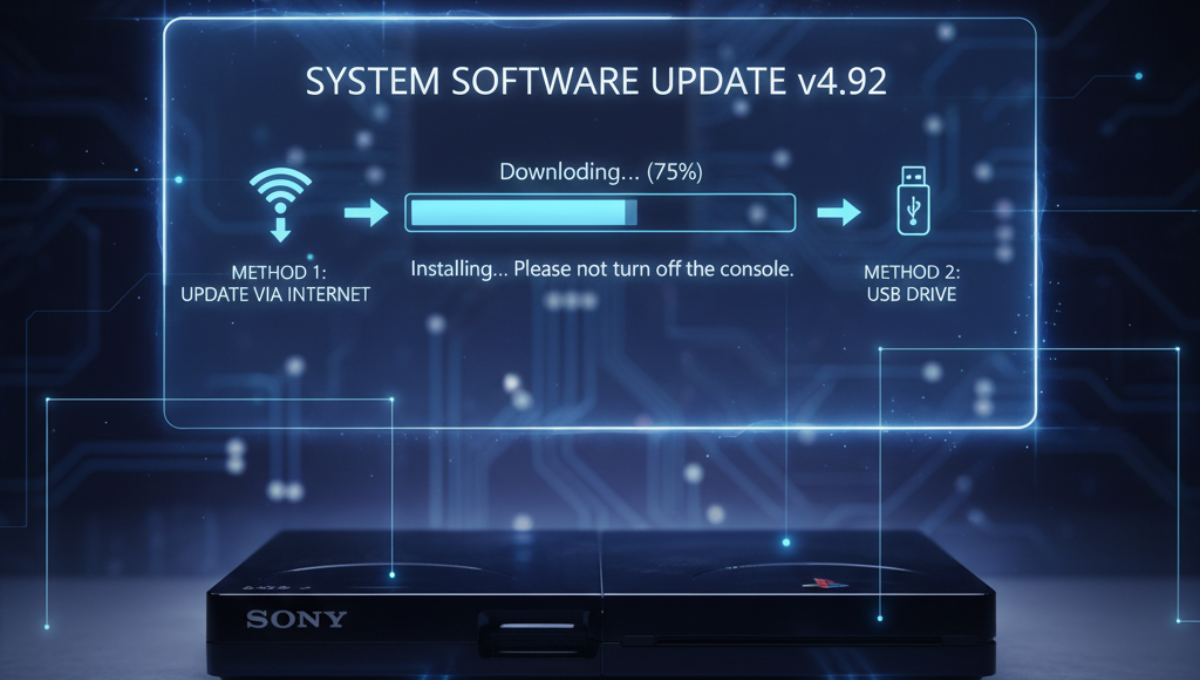
Updating your Sony PlayStation 3 (PS3) firmware is essential for maintaining optimal performance, enhancing security, and gaining access to the latest features. Firmware updates also fix bugs and improve system stability, ensuring your gaming experience remains smooth and enjoyable. If you’re looking to update your PS3 to version 4.92, this comprehensive step-by-step guide will walk you through the entire process safely and efficiently.
Why Update Your PS3 Firmware?
Before diving into the update process, it’s important to understand why keeping your PS3 firmware current is crucial:
- Security Patches: Protect your console from vulnerabilities and hacking attempts.
- New Features: Gain access to the latest system features and improvements.
- Game Compatibility: Ensure compatibility with new games and applications.
- System Stability: Fix bugs and bugs that may cause system crashes or errors.
Prerequisites for Updating to Firmware 4.92
Before starting the update, make sure you have:
- A stable internet connection (Wi-Fi or Ethernet).
- Your PlayStation 3 console turned on and connected to the internet.
- A fully charged or connected power source to prevent power interruptions during the update.
- Optional: A USB drive (if you prefer updating via USB instead of online).
Method 1: Updating via Internet (Recommended)
Updating directly via the PlayStation Network is the easiest and most straightforward method.
Step 1: Turn on Your PS3 and Connect to the Internet
- Power on your PlayStation 3.
- Ensure your console is connected to the internet either via Wi-Fi or Ethernet cable.
Step 2: Access the System Update Option
- From the XMB (Cross Media Bar) menu, navigate to Settings.
- Scroll down and select System Software Update.
Step 3: Check for Updates
- Choose Update via Internet.
- The console will now check for the latest firmware version.
Step 4: Download and Install Firmware 4.92
- If firmware 4.92 is available, you will see a prompt to download and install.
- Confirm by selecting OK.
- The system will start downloading the update file. Avoid powering down your system while the update is in progress.
- Once downloaded, the installation will begin automatically.
- Your PS3 may restart multiple times during the process.
Step 5: Completion and Confirmation
- After installation, your PS3 will restart.
- You will see a confirmation message indicating the firmware is now updated to version 4.92.
- You can verify this by going to Settings > System Settings > System Information.
Method 2: Updating via USB Drive (Offline Method)
If your internet connection is unstable or you prefer to update manually, using a USB drive is a reliable alternative.
Step 1: Prepare Your USB Drive
- Use a USB drive with at least 256 MB of free space.
- Format the USB drive to FAT32:
- On Windows: Right-click the drive > Format > Select FAT32.
- On Mac: Use Disk Utility to format as MS-DOS (FAT).
Step 2: Create the Update Folder
- Inside the USB drive, create a folder named PS3.
- Within the PS3 directory, generate a new folder labeled UPDATE.
Step 3: Download the Firmware 4.92 Update File
- Visit the official PlayStation website: PS3 System Software Update.
- Download the latest update file named PS3UPDAT.PUP suitable for version 4.92.
Step 4: Save the Update File
- Move the PS3UPDAT.PUP file into the UPDATE folder on your USB drive.
Step 5: Install the Firmware from USB
- Safely eject the USB drive from your computer.
- Connect the USB device to any available USB port on your PS3.
- Turn on the PS3 and navigate to Settings > System Software Update.
- Select Update via Storage Media.
- The system will detect the update file on your USB drive.
- Follow the on-screen prompts to install firmware 4.92.
- Do not turn off the console during the update process.
Step 6: Verify the Update
- After installation, your PS3 will restart.
- Confirm the update by checking Settings > System Settings > System Information.
Troubleshooting Common Update Issues
- Update Fails or Errors Appear: Ensure your internet connection is stable or try the USB method.
- Power Loss During Update: Never turn off your PS3 during an update. Wait for the process to complete.
- Incorrect Firmware Version: Make sure you downloaded the correct update file for your system.
- Corrupted Update File: Re-download the update file and replace it in the USB folder.
Final Tips for a Smooth Update Experience
- Keep your PS3 plugged into a reliable power source.
- Please ensure that you do not interrupt the update process once it has begun.
- Backup important data if possible, especially if you plan to perform a system reset afterward.
- Check the official PlayStation website periodically for the latest firmware updates.
Conclusion
Updating your Sony PlayStation 3 to firmware 4.92 is a simple process that can significantly improve your gaming experience by enhancing security, stability, and features. Whether you choose the online method or offline USB method, following this step-by-step guide ensures a safe and successful update. Keep your console up to date and enjoy seamless gaming!
